

1. Open Assigned rooms
Go to Tenants → Edit and inspect every room or bed. A tenant with two rooms still has an active assignment when only one room is released.
2. End the relevant stays
Choose End stay, verify the effective date and repeat for the other assignments if the person has left all accommodation. Save Changes; an unsaved change has not released the stay.
3. Review any remaining balance
Ending a stay does not mean old rent was paid. Check the tenant’s earlier bills and payment history so outstanding amounts are not overlooked.
4. Delete from the tenant list
Return to Tenants and delete the now-unallotted tenant. If deletion is still blocked, reopen Assigned rooms and check for another active room or bed.
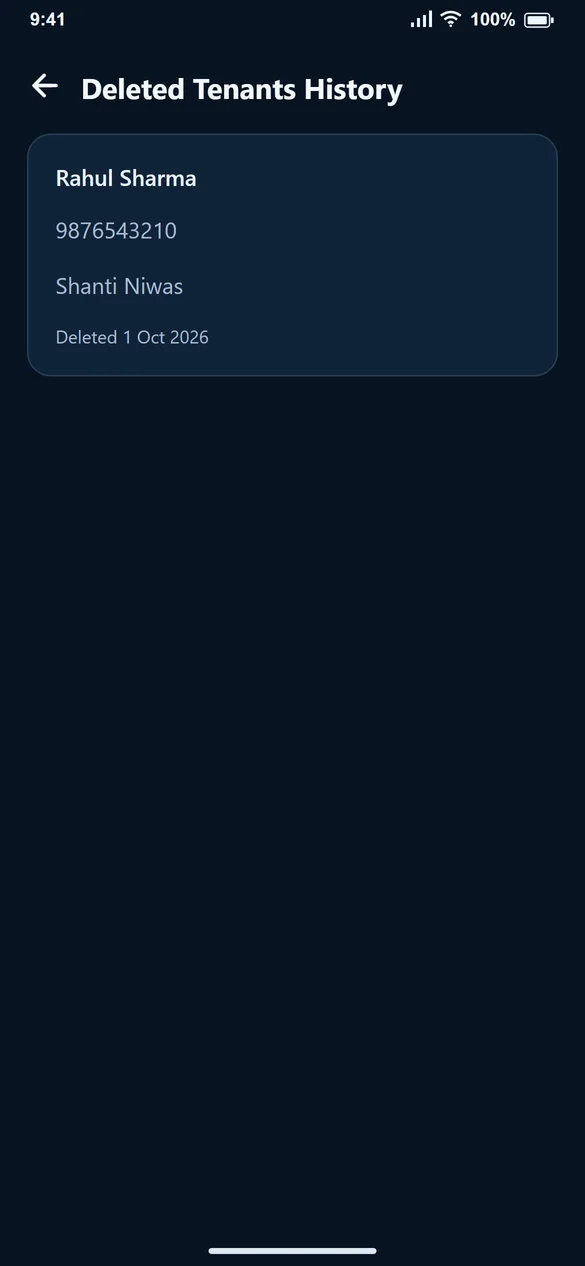
5. Find the historical entry
Open Deleted Tenants History at the bottom of the tenant list. It is a read-only list. Removing a tenant from the main list is not the same as erasing all past billing information or making a formal data-erasure request.
Common questions
Can I delete a tenant who never had a bill?
Once there are no active assignments, the tenant can be removed from the main list. Not having a bill alone does not end an active stay.
Will unpaid rent disappear when the stay ends?
No. Review old bills and payments separately; move-out is not payment settlement.
Can I edit a tenant from Deleted Tenants History?
The history list is read-only. It is provided for reference.