

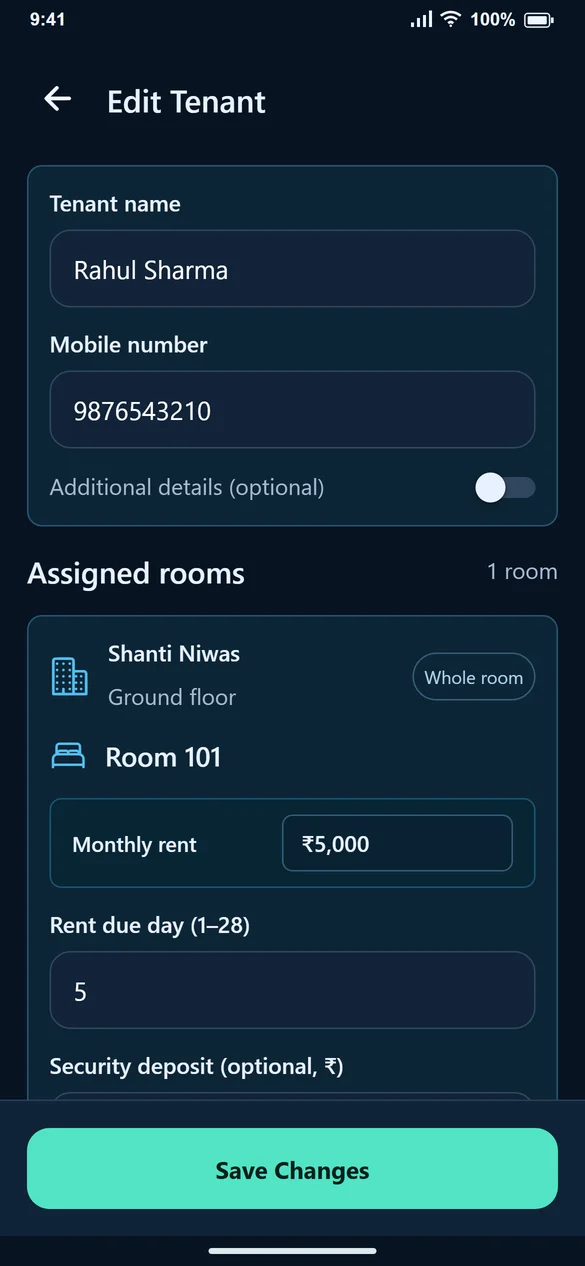
One person, more than one room
If Rahul rents Rooms 101 and 102, keep one tenant profile and add another room assignment. Set the rent for each stay. Review each stay in Create Bill and prepare the corresponding bill.
Select an existing room before creating a new one
Choose the property and floor, then check the room list. Reuse the room you already entered. In a PG room, select a vacant bed. Review the number and floor before saving, particularly when different properties both have a Room 101.
Keep optional details optional
The quick form asks for the information needed to start the stay. Enable Additional Details when you want to add an emergency contact, address, ID type, ID number or ID image. Do not put someone else’s contact number into a tenant profile just to get past a required field.
Editing a name does not mean the tenant moved out
Use the personal details area to correct a name or mobile number. Use the Assigned rooms area to change a room or end a stay. Review the effective date of a room change. These are different actions and should reflect what actually happened.
End every active stay before removing the tenant
A tenant occupying two rooms still has an active stay if you release only one. End the remaining assignment and save. You can then remove the tenant from the active list, with their entry available in Deleted Tenants History and earlier billing records retained.
Common questions
Can I add ID details later?
Yes. Open Edit Tenant and enable the optional Additional Details section.
Should I create a new profile when a tenant changes rooms?
Usually no. Use the existing tenant and change or add the room assignment so you can keep the person’s details together.
Why can’t I delete a tenant after removing one room?
Check every assigned room or bed. Another active stay may still exist. Save the end-stay changes before deleting.