

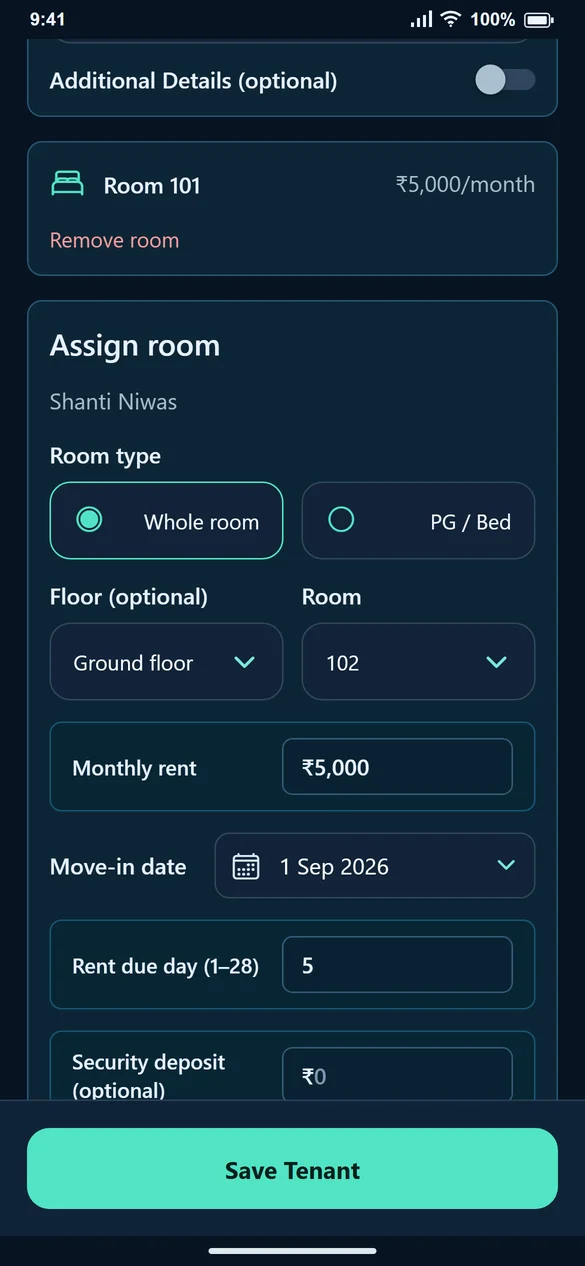
1. Choose the first room
Set up the tenant and first room normally. Confirm the property, room or bed, monthly rent and dates.
2. Add the second assignment
Select Add another room. Choose a different available room or bed and enter its rent. A room already selected in the unsaved form should not be selected again as another whole-room assignment.
3. Review before saving
Check every room card. For example, Room 101 at ₹5,000 and Room 102 at ₹4,000 are two assignments. Make sure the correct rent is entered for each rather than copying a combined ₹9,000 into both.
4. Use Edit Tenant for an existing renter
Open Tenants → Edit, inspect Assigned rooms and select Add another room. Save Changes after adding the room. Do not create another tenant just to add the second stay.
5. Review each stay when billing or moving out
Create Bill works with the selected stay and month. Check both assignments when preparing bills. At move-out, end every active stay before deleting the tenant from the main list.
Common questions
Can the rooms be on the same floor?
Yes. Choose the available rooms; they do not need to be on different floors.
Does the tenant automatically get one combined bill?
Review the selected room or stay in Create Bill and prepare its bill. Check each assignment when a tenant has more than one room.
Why is a plan limit shown?
An extra room assignment can use another active-allotment slot. Check the plan’s limits, not only its tenant allowance.